Creating a Creative Asset Group
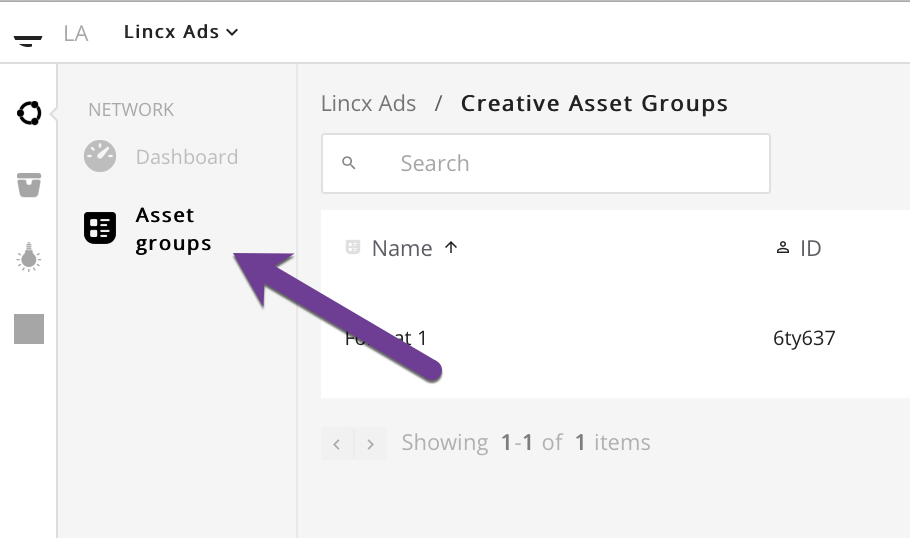
In order to create a Creative Asset Group (CAG) you will first need to navigate to the Asset Groups tab in the Network section as depicted below.
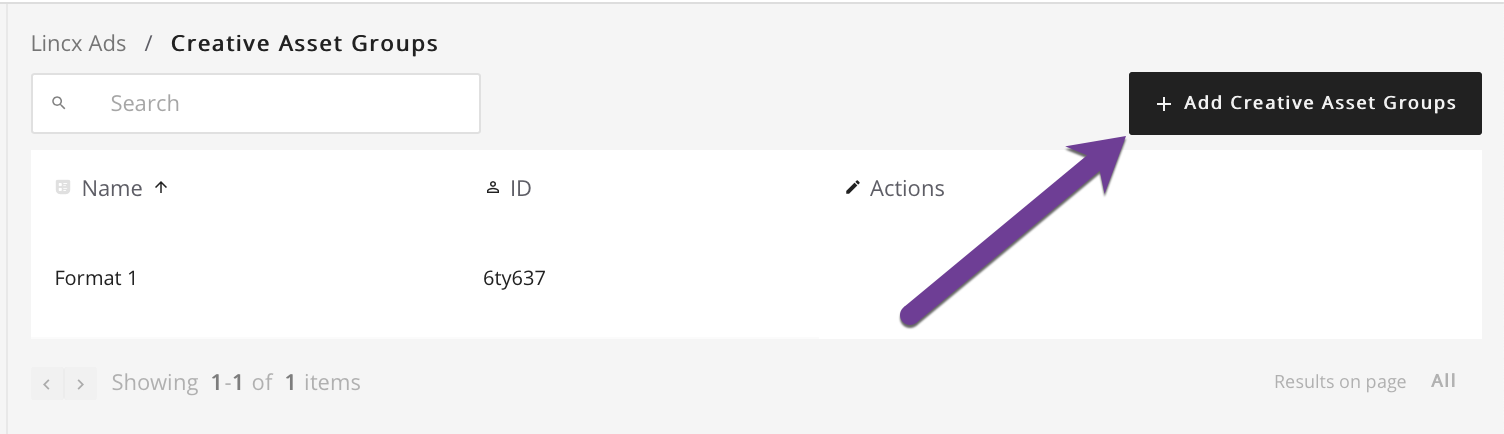
Once you're on that page, select the Add Creative Asset Groups button in the upper right corner which will take you to a form for creating a new CAG.
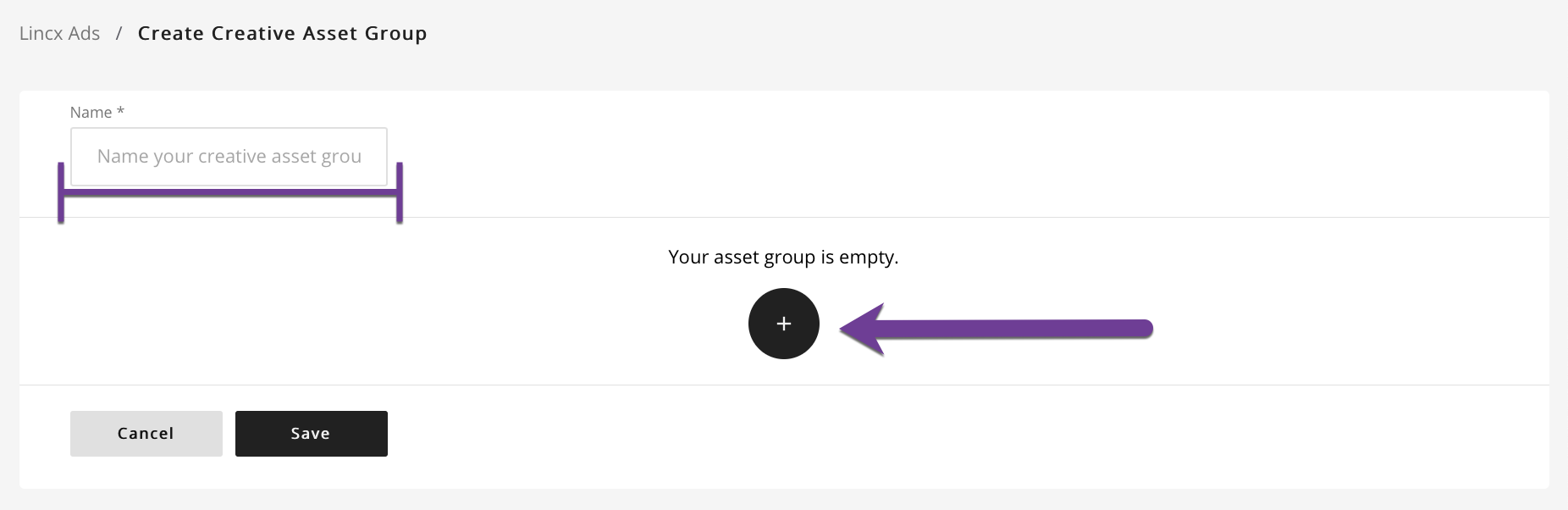
This form should look similar to the image below and will require that you fill out the input called name and then click the black and white circular button in the center (plus symbol) to begin adding fields to your CAG.
You must add at least one field in order to save the CAG. Each field is defined by a name, data type (string, array, boolean, integer) and description. The green gear icon provides advanced options, the red trash can icon deletes that field, and the plus icon adds a new field below.
Data Types
- String: A string of text, like this very sentence. Any textual information like headers, taglines, bullet points, etc.
- Array: This creates an open-ended count of entries of one of the other three data types. Perfect for things like bullet points. More on this below.
- Boolean: True or False values. Can be used to denote things like whether or not a given Creative is 'Featured' which can be leveraged by Templates to add additional flare to that particular creative like a 'Featured Card' banner.
- Integer: Whole numbers. Useful for providing counts of things like star ratings or reviews.
More on Arrays- Arrays give users the flexibility to add an open-ended number of entries for a given field. This is most often leveraged for bullet points or lists. Suppose your creatives will have a variable number of items where one creative might have three bullet points, while others may have four or five. Arrays should be used in this case.
When you choose a data type of array, an additional field will appear below that allows you to define the data type of the entries that will appear in that array. In this example we create an array of string types for our bullet points:
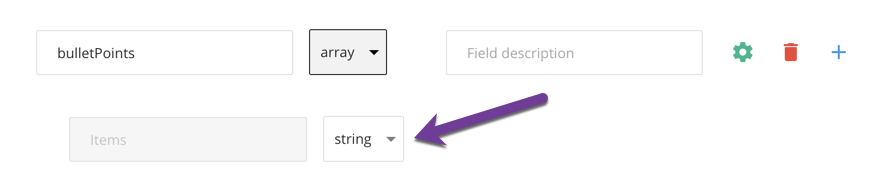
Now users can add one or more bullet points to each Creative that is base on this CAG.
Pre-Defined Values
The fields you define will be open-ended by default, meaning that when a user goes to create a Creative based upon your CAG, they will be able to enter anything as long as it conforms to the data type of that field. If you want to constrain the field to certain values, you can do so in Advanced Edit by clicking the green gear icon.
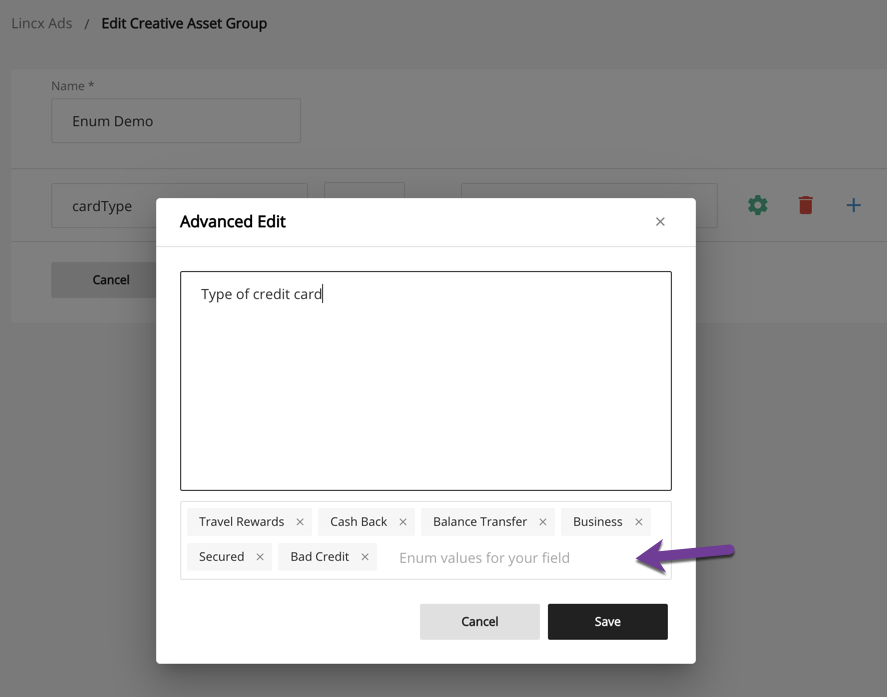
The resulting modal will have a larger text field input for the description as well as a field below that entitled 'Enum values for your field' for the string, boolean and integer data types. This is where you can input values that will create a drop-down menu for users when creating a creative.
As an example, suppose we are setting up a CAG meant for credit card ads. We want to define a field called cardType and constrain the inputs to: Travel Rewards, Cash Back, Balance Transfer, Business, Secured and Bad Credit to ensure consistency across our network.
Setting that up in the CAG would look like this:
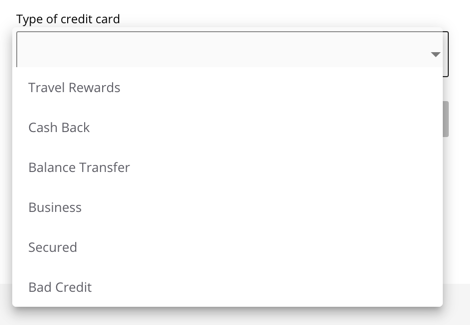
The resulting drop-down menu when building a Creative will now appear like so:
Finishing Up
Once all details have been entered, click the Save button to create the new Creative Asset Group and be returned to the Creative Asset Group index. Setup of your Creative Asset Group is now complete.