Member Management
As you build out your network, you will find that you may need to include additional team members or give your Publishers access to the Publisher Portal. Adding those individuals is actually very easy.
Adding Network Members:
Network Members are those individuals that should have full visibility into the platform including anyone who may be involved in setup or should have visibility into reporting on all sides.
To add a Network Member, start by clicking the network name in the top-left corner of the screen. The network switcher will appear:

Hover over your network and you will see a settings cog appear. Click the cog and choose "Edit" in the resulting menu.

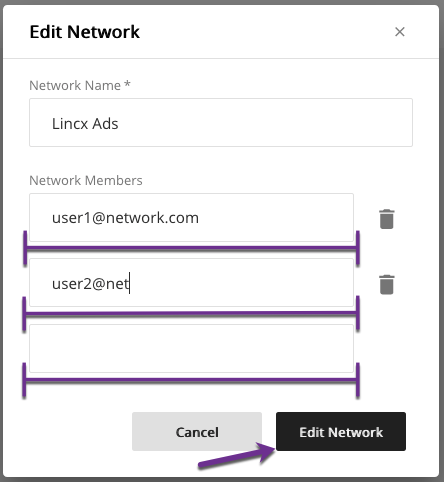
The resulting Edit Network window will allow you to enter the team members that will need access. Simply enter their email addresses (one address per box) and when finished, click the black "Edit Network" button at the bottom.
Now that your team members have been given access to your network, they will need to sign up if they have not done so already. For instructions on how to sign up, please skip below to the section titled "Member Sign Up".
Adding Publisher Members:
A Publisher Member is someone who will be logging in and interacting through the Publisher Portal. They are, simply put, your Publisher's users.
Adding Publisher Members is also very easy. To start, navigate to the "Publishers" grid, locate which Publisher you want to add members to and click the "Edit" button on that line. The Edit Publisher pane will appear:

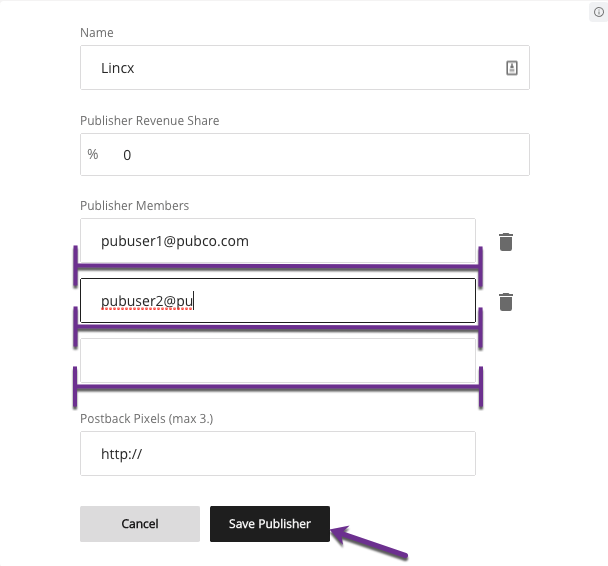
Within the Edit Publisher pane, you will see a line titled "Publisher Members". Just as you did with Network Members, enter the email addresses of each individual who will need access under this Publisher (again, one per line) and once complete, click the black "Save Publisher" button.
Your Publisher Members now have access to your network under their specific Publisher account. Just like Network Members, Publisher Members will need to sign up if they have not done so already.
Member Sign Up:
Lincx uses a unique single-account structure for any member across all of the networks they have access to, regardless of whether they are a Network Member or a Publisher Member. In order to access any of those networks after the member has been added via one of the methods above, they will first need an account.
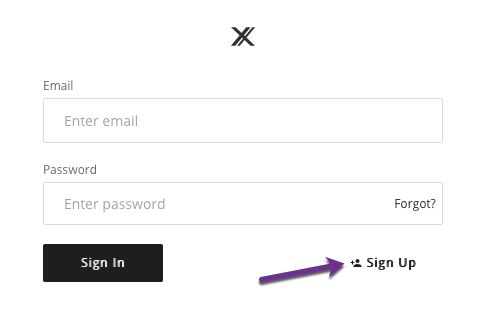
To create an account, start by going to https://app.lincx.com and clicking the "Sign Up" link towards the bottom-right of the Password field:
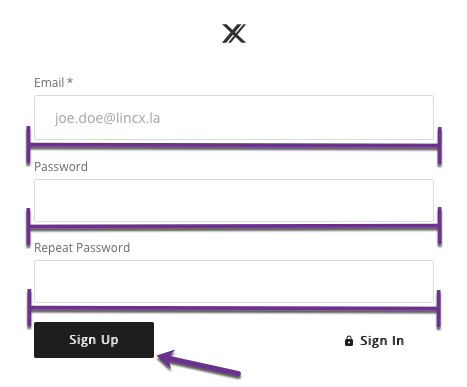
Once in, the user will simply enter their email address, choose a password, repeat the password and then click the black "Sign Up" button.
After completion, the member will be able to sign in and will be able to choose any network they have been given access to with the specific visibility level based on whether they are a Network Member or a Publisher Member on that network.