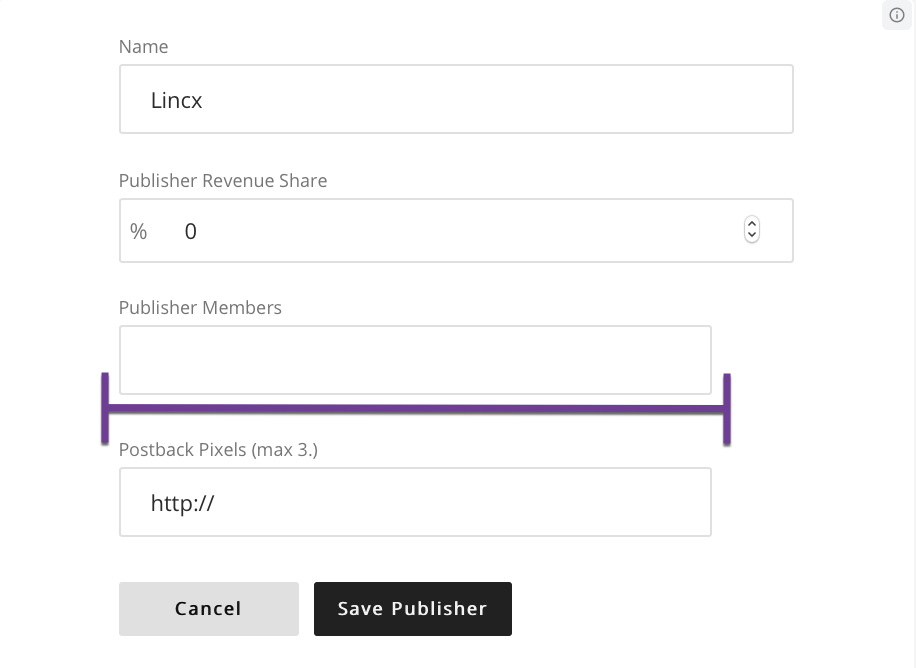
Adding A Publisher Member
Once you have created a publisher, you are able to further configure that publisher by editing it. Specifically this article will address how to add a member to a publisher.
The first step to add a member is to navigate to the Publisher tab in the Inventory section as shown below.

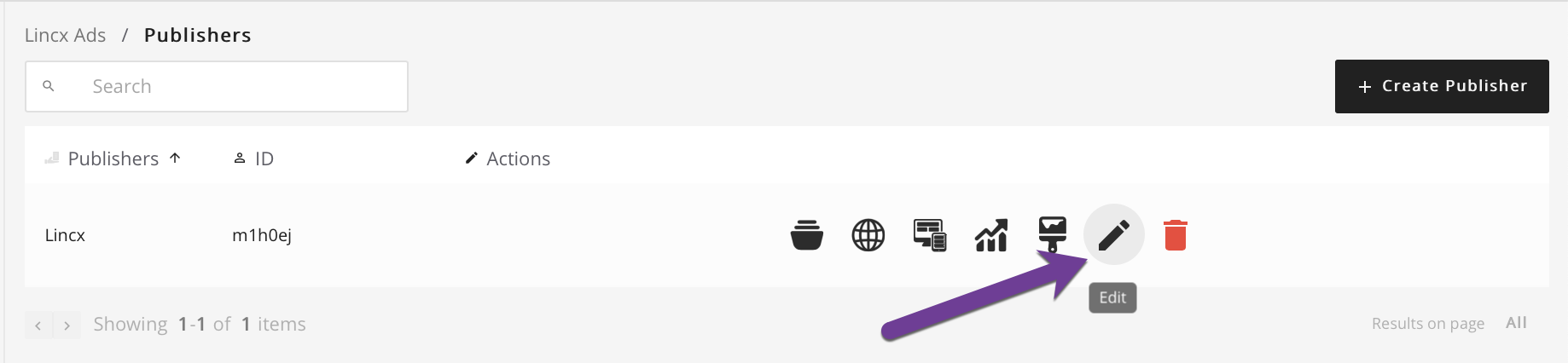
Once you have arrived on the Publishers page you will hover over the publisher you wish to add a member to and select the Edit button as shown below.
By clicking the edit button you will be redirected to a page with a form as shown below which will allow you modify the publisher, and in this case, add a member to that publisher. By typing in the Publisher Members input, it will add another line to continue adding members and also a link to remove a member that you're in the process of adding. Please note that the member input must be input as an email address. Once you are satisfied with your entry, select the save button and you will be redirected back to the Publisher index view.