Reports Center
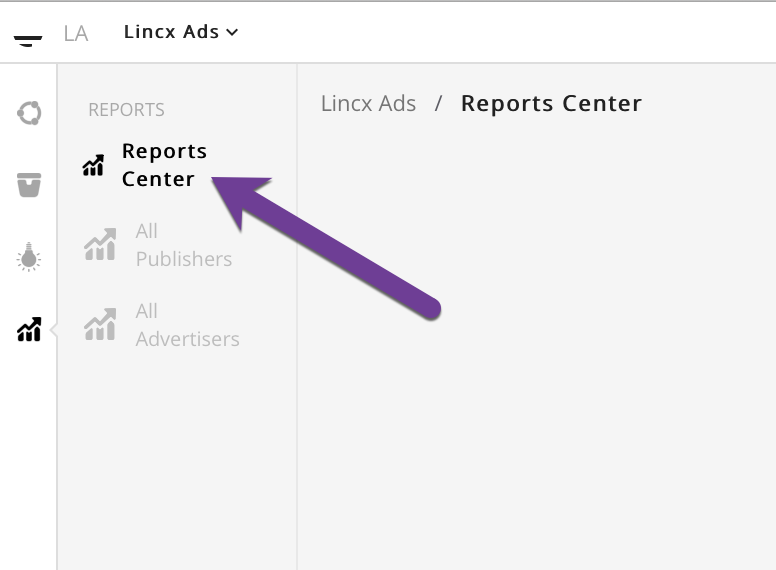
In order to view and interact with the Reports Center you will first need to navigate to the Reports Center tab in the Reports section as shown below.
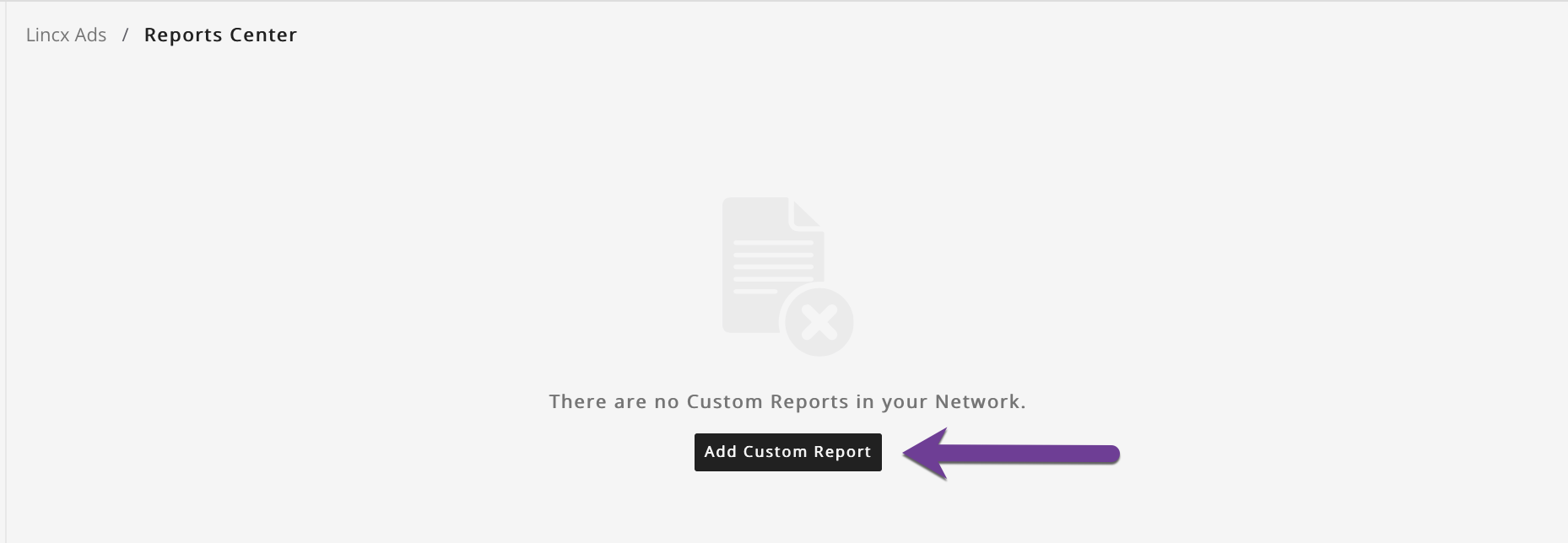
Once you have navigated to the Reports Center page you will see one of two views. If you haven't setup any custom reports you will see a view like the image below with the option to create a new report via the Add Custom Report button located in the center of the page.
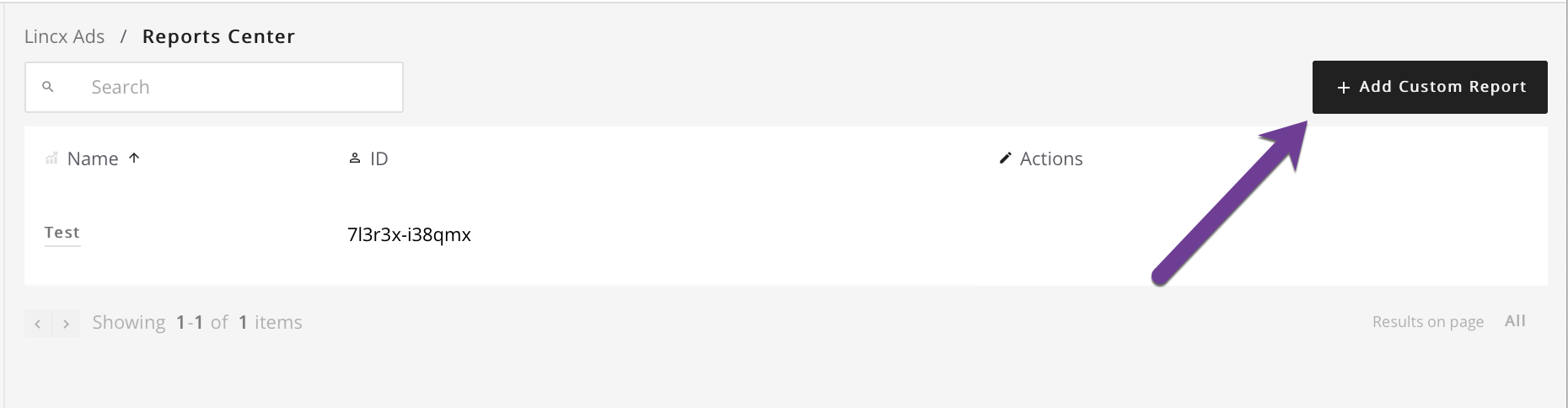
If you already have reports listed here however, the page will look like the next image and will similarly have the option to create a new custom report via the Add Custom Report button.
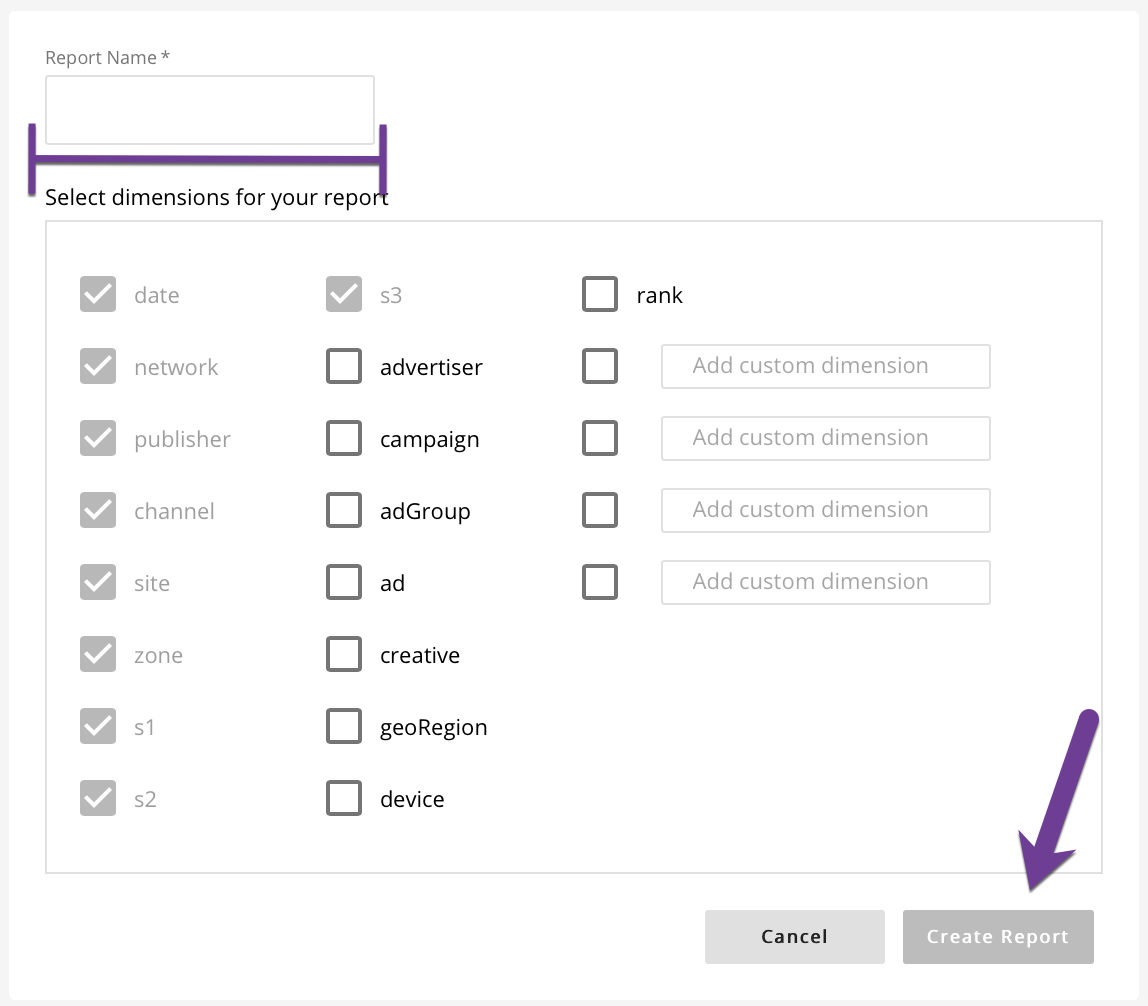
If you've clicked the Add Custom Report button, you'll find that a popup form will appear with the option to configure and create your new report. At a minimum, you will be required to give the report a name, but you will likely want to configure the report in other ways as well by selecting applicable dimensions for the report. Once you are satisfied with the new report format, click Create Report which will create the new report and redirect you to the Reports Center which will now display all custom reports.
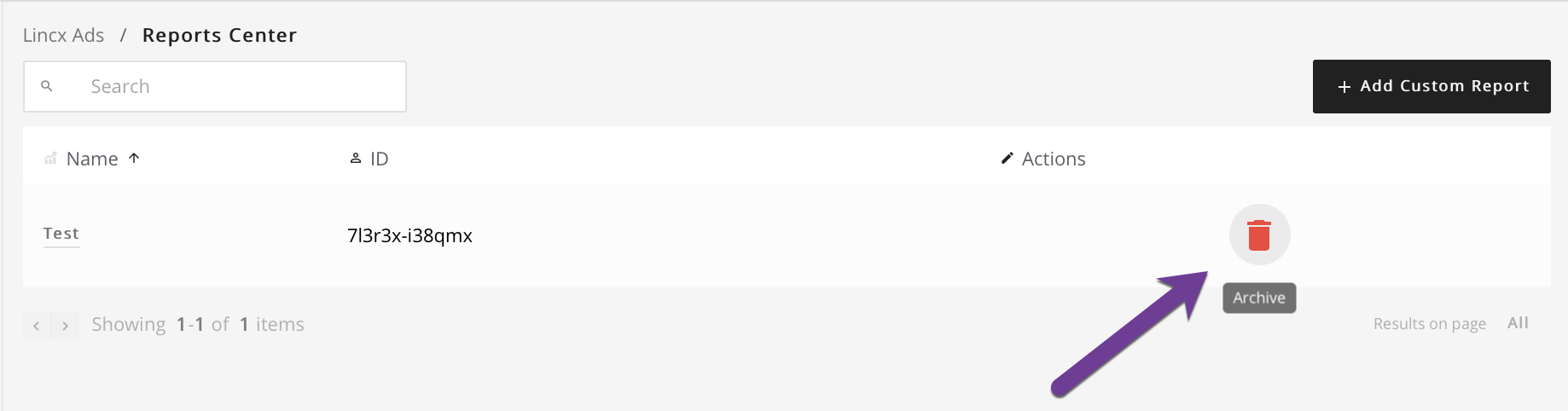
Now that a custom report has been created, you can view the report by selecting the name of the report. Alternatively, if you wish to remove the report you can archive it by selecting the Archive button.