Creating a Template
*It should be noted that a pre-requisite for creating a template is the creation of a Publisher found here.
Once you have successfully created a publisher, navigate to the Publishers tab in the Inventory section as depicted below.
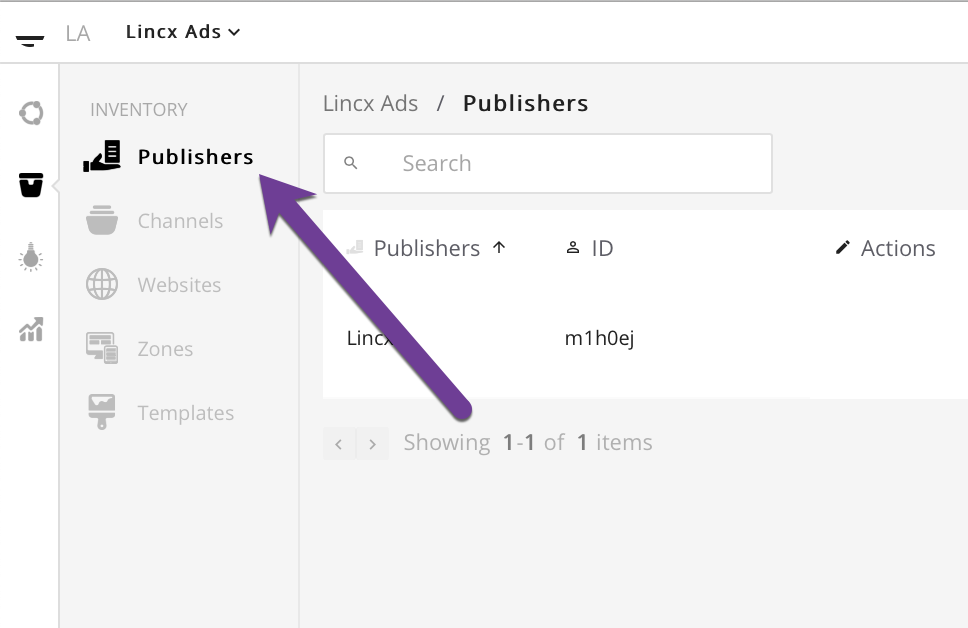
On this page, you will find an index view of all publishers created. Find the Publisher that you wish to create a Template for and hover over the section to the right. Next, select the Templates link as shown below.
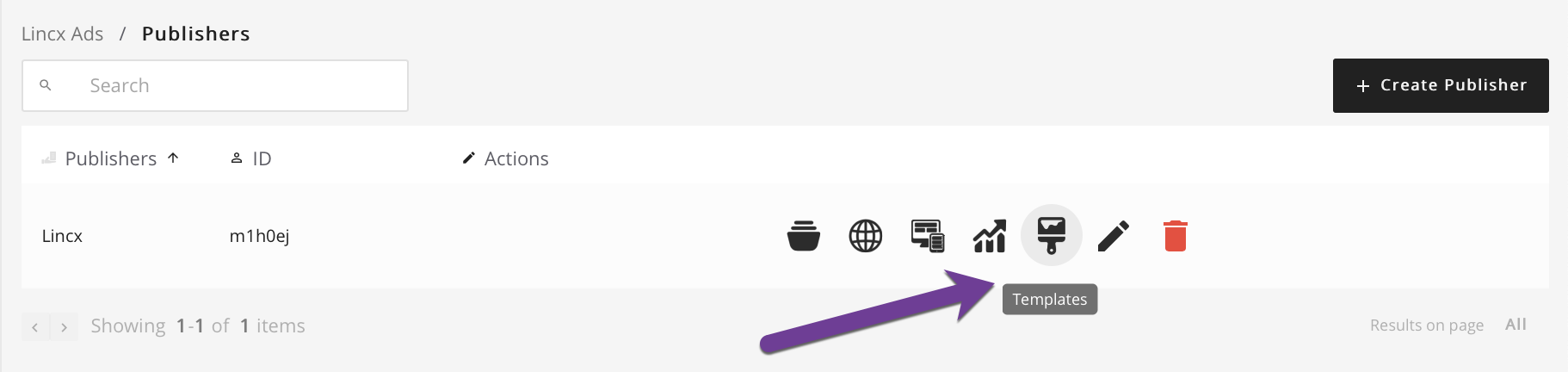
Now that you are on the Template page for your selected Publisher, you can create a Template for that Publisher. You can confirm that you are in the right location by looking at the breadcrumb path above the search bar and you should see any Templates already created for the Publisher that you selected. From this view, you are able to edit or remove any existing Templates but to create one, the next step is to select the Create Template button in the upper right corner.
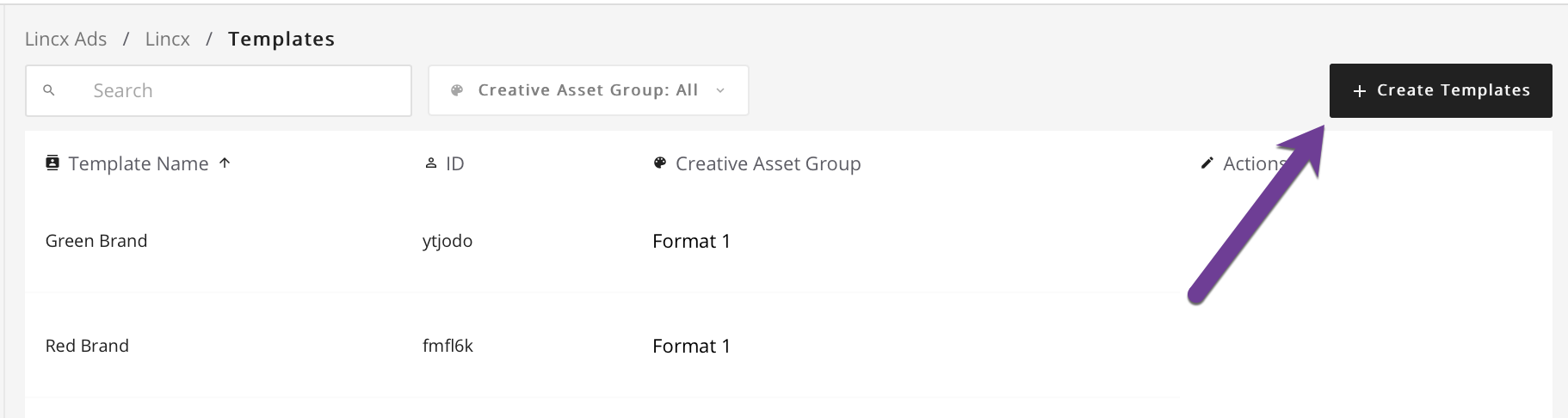
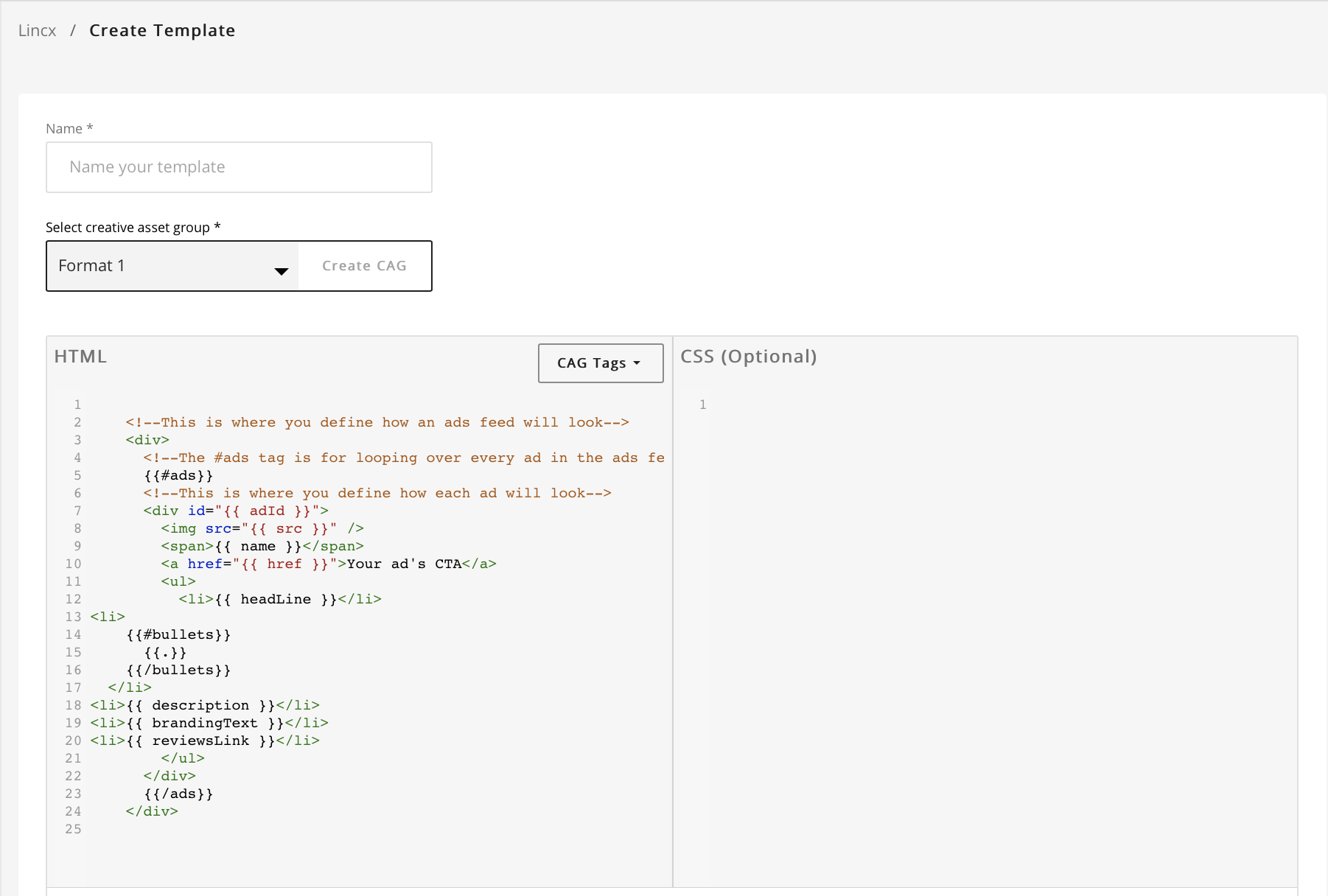
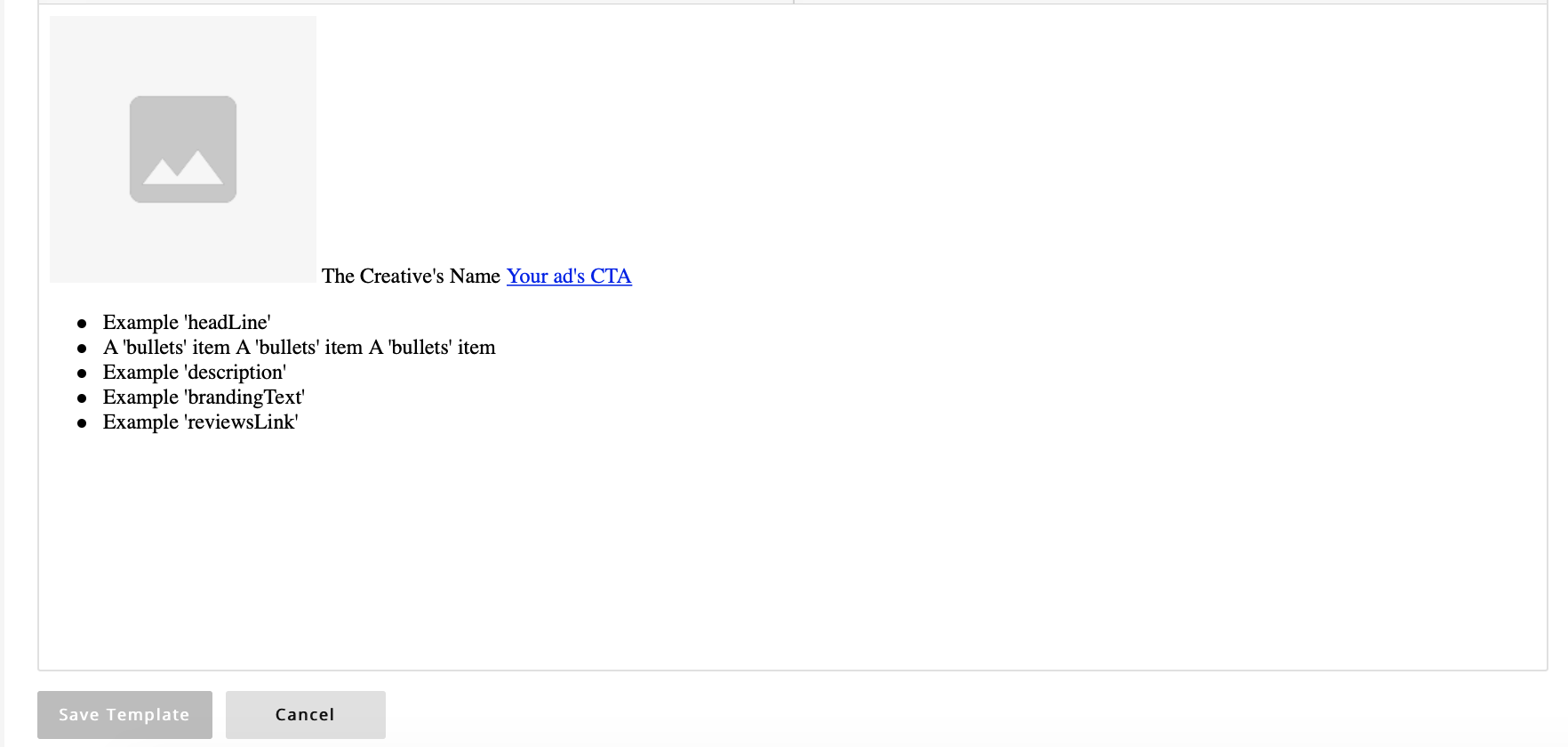
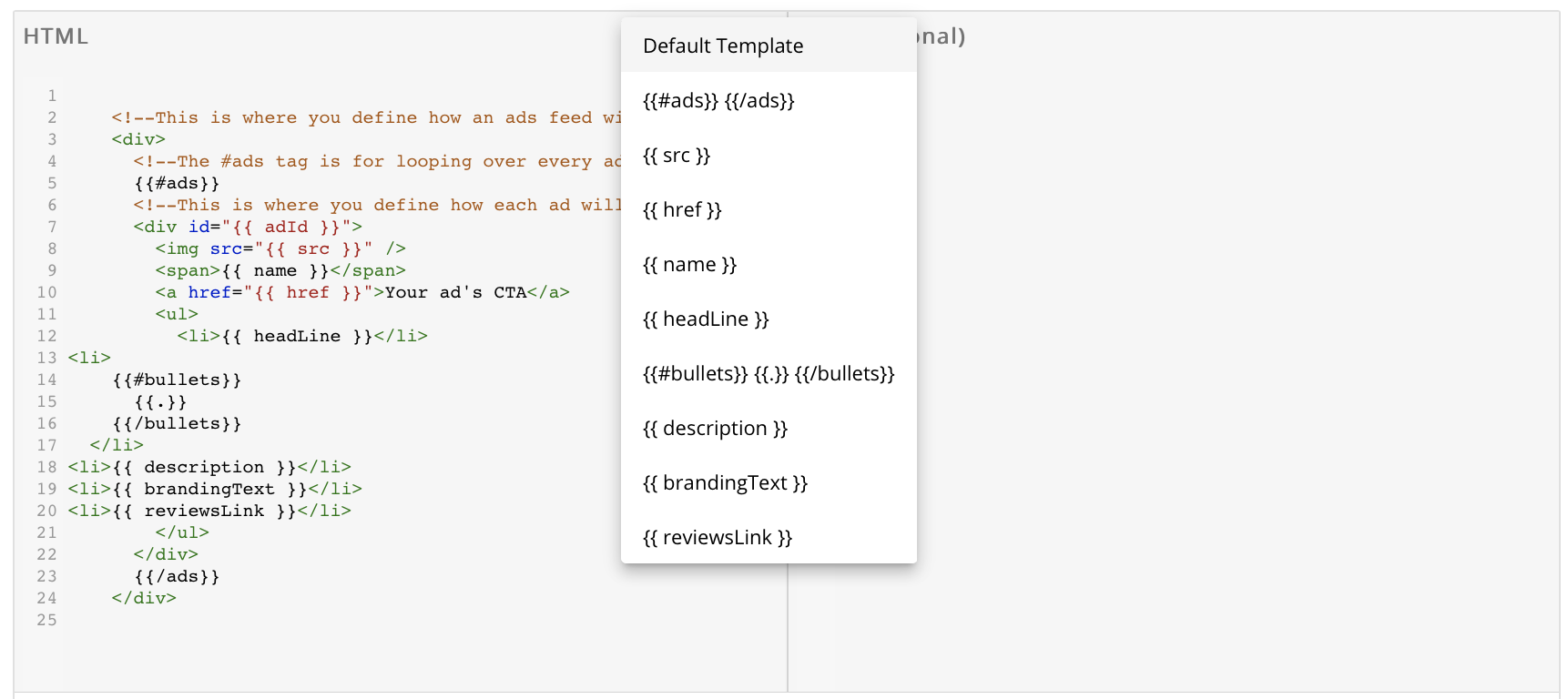
Now a form should appear with a few necessary fields. Fill out the name and select an existing Creative Asset Group or create one. For instructions on how to create a Creative Asset Group, see the documentation here. The rest of the Template design is up to you. It should pre-populate a basic structure for an ad once a CAG has been selected which will display in the bottom portion of the page as a preview. Any changes to either the HTML or CSS will update in the preview as you edit, but will not go into effect until saved. It should be noted that the available tags that relate to the selected CAG can also be viewed by selecting the dropdown in the upper right-hand corner of the HTML editing box. Clicking the arrow will display all available CAG tags. Once satisfied with the ad design, save the Template and you will be redirected back to the publisher Templates index.